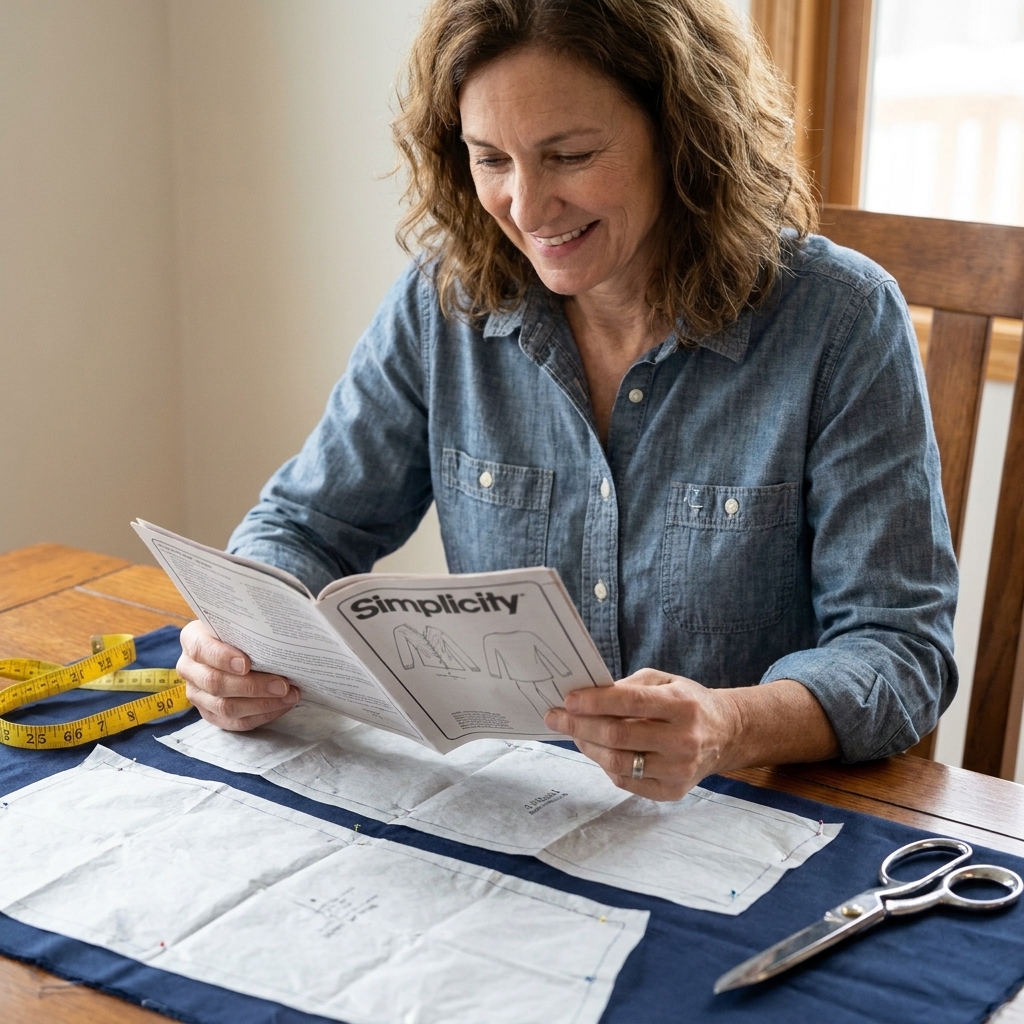

If you have ever downloaded a free PDF sewing pattern, opened it up, and thought, “Why is this a million pages and why do the lines look like a maze?”, you are in very good company. I avoided PDF patterns for far too long because I was sure I would print them wrong, tape them wrong, or somehow end up with a toddler shirt that fit a houseplant.
The good news: once you know the few key rules (scale, no sneaky shrinking, and consistent page handling), PDF patterns are wonderfully predictable. Let’s get you from download to cut-out pattern pieces with zero mystery.
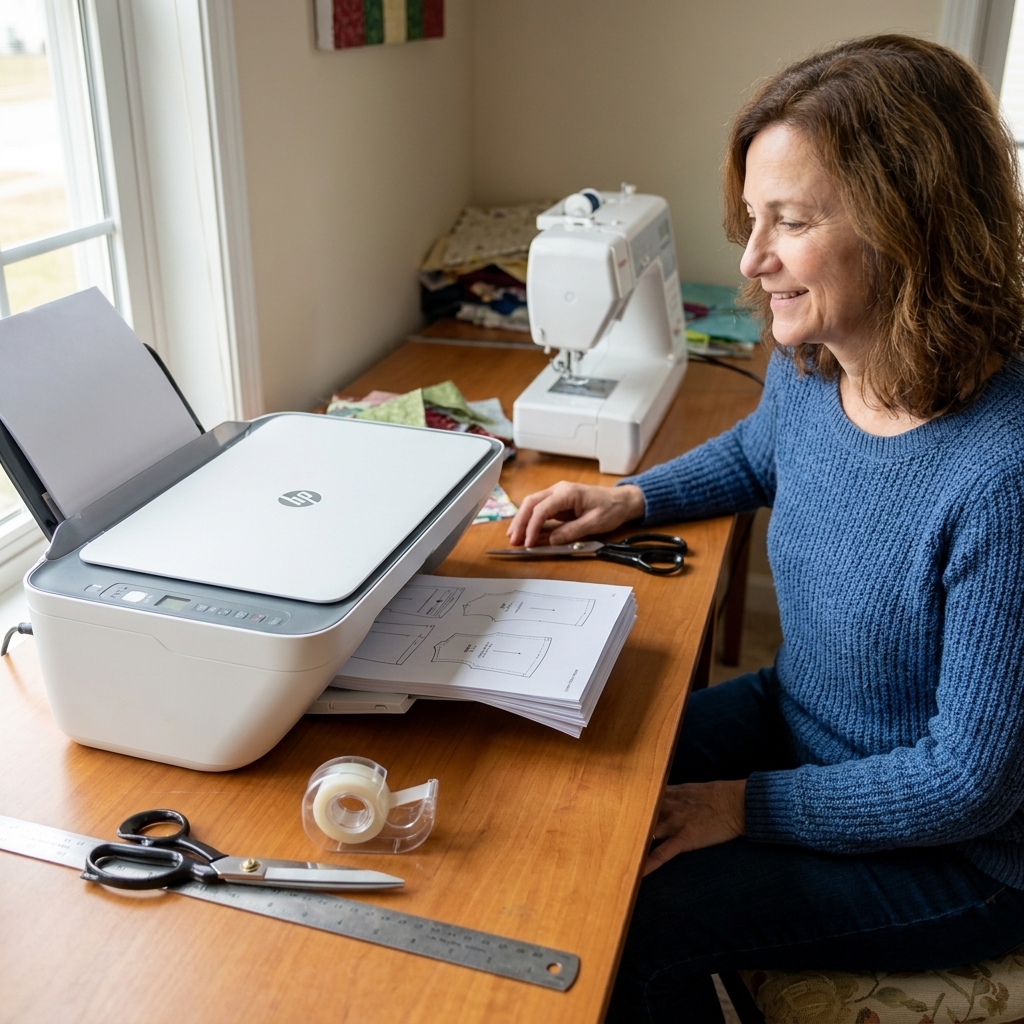
Before you print: a quick setup that prevents most problems
What you need (nothing fancy)
- A printer (inkjet or laser both work)
- Paper (usually US Letter 8.5 x 11 in or A4, depending on the file)
- Clear tape or washi tape (washi is easier to reposition)
- Scissors or a paper trimmer
- A ruler (or quilting ruler)
- A flat surface (floor space counts)
Find the right file in the download
Many designers include multiple files. Look for labels like:
- Print-at-home (this is the tiled one you tape together)
- A0 / Copy shop (large format, not for home printers)
- Projector (for projecting, not printing)
- Instructions (separate booklet, often worth printing or viewing on your phone)
If you are unsure, open the PDF and scroll a little. A print-at-home pattern will look like lots of pages with pattern lines crossing the edges and little alignment markers.
Use a PDF viewer that gives you real control
If possible, open the pattern in a dedicated PDF viewer (like Adobe Acrobat Reader). Some browser viewers can “help” by scaling, and that is exactly what we do not want.
Also: print dialogs look a little different on Mac vs Windows (and from app to app). “Actual Size” might show up as “Scale: 100%” or “Custom scale: 100%”. The goal is the same.
The most important step: print at the correct scale
If your pattern prints even slightly off, every piece becomes slightly off, and it snowballs. This is why pattern designers include a test square (also called a calibration square) on one of the first pages.
Step 1: Locate the test square
It is usually a box labeled 1 inch, 2 inches, 4 cm, 5 cm, or similar. Sometimes there is both an imperial and metric square. Great.
Step 2: Print only the test page first
Do not print all 30 pages yet. Print the single page that contains the test square (often page 1 or 2). This one tiny step can save you paper, ink, and your mood.
Step 3: Set your print scaling correctly
In your print settings, you want one of these options:
- Actual Size
- 100%
- Custom Scale: 100%
Avoid these options:
- Fit
- Shrink to printable area
- Scale to fit
Those settings make things smaller or larger to match your printer’s margins, and a pattern cannot survive that kind of “help.”
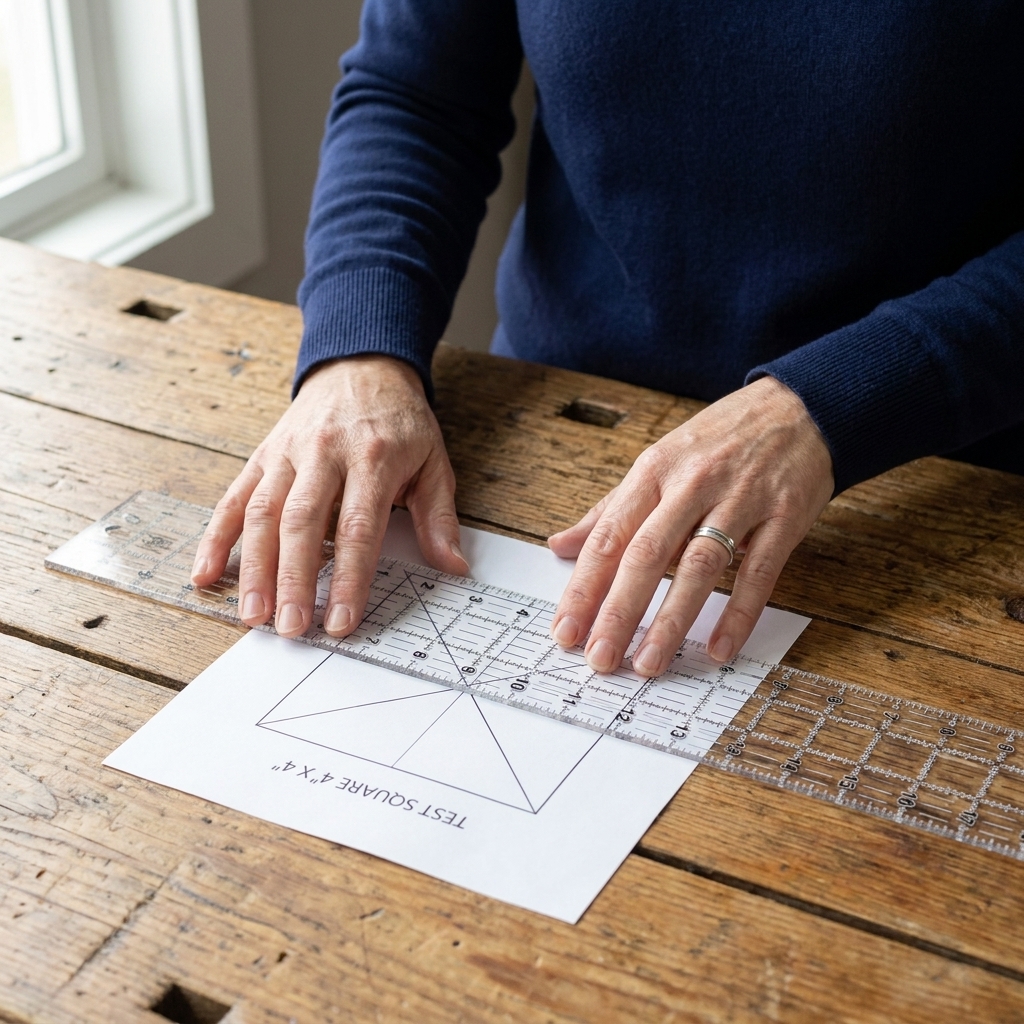
Step 4: Measure the test square carefully (with love)
Once it prints, measure the square with a ruler. Measure the inside edge to inside edge, not the outer line thickness. It should match exactly.
- If the square is too small, something is shrinking your print.
- If the square is too big, something is enlarging your print.
A practical tolerance: aim for dead-on. If you are off by more than about 1 mm on a 5 cm square or 1/32 to 1/16 inch on a 1 inch square, it is worth fixing before you print the full pattern (and always follow any tolerance guidance the designer includes).
Paper size, orientation, and layers
Choose the correct paper size
Patterns are usually formatted for US Letter or A4. Print the file that matches your paper. If you print an A4 file on Letter paper or vice versa, it can crop margins and throw off alignment.
Let the pattern choose portrait vs landscape
Some patterns are designed to print in portrait, some in landscape. The file will make this obvious when you look at the pages. In the print dialog, you can often select Auto orientation so it follows the PDF.
Use layers if the pattern includes them
Many modern PDF patterns have layers, meaning you can turn off sizes you do not need. This makes tracing and cutting so much easier.
If you see a sizes list in your PDF viewer’s layers panel, try turning off everything except your size (or your size range if you plan to grade between sizes). If you do not see layers, no worries. Not all freebies include them.
Print the full pattern without surprises
Double-check these settings before you hit Print
- Scale: 100% / Actual Size
- Paper size: Letter or A4 as intended
- Print quality: Normal is fine
- Single-sided vs double-sided: single-sided is easiest for beginners
Print only the pages you need (yes, you can)
Once your test square is correct, you do not have to print the whole file in one go. In the print dialog, look for Pages or Page range, then enter a range like 3-18 or select specific pages like 3, 5, 6, 12.
This is especially handy if the PDF includes instructions, multiple views, or size ranges you are not using.
Keep pages in order as they come out
Sounds silly, but it is a lifesaver. I like to print, then immediately tap the stack on the table to align the edges, and set it aside in one neat pile. If your printer prints face-up, the order may come out reversed. That is fine. Just keep it consistent and check the page numbers.
Assemble and tape the pages
Assembly looks intimidating because you are staring at a puzzle. But it is a polite puzzle. The pages are numbered and usually include a layout map.
Step 1: Find the assembly map
Most patterns include a grid showing where each page goes, like A1, A2, A3 across the top and B1, B2 underneath. Keep this page handy on your phone or next to you.
Step 2: Decide whether you are trimming or overlapping
Designers usually set patterns up for one of these methods, and the instructions will tell you which one to use:
- Trim method: you cut off the margin on specific sides, then butt pages edge-to-edge.
- Overlap method: you do not trim. You overlap pages and match the markings.
Some patterns also include a “no-trim” layout, special cut marks, or guides that only work if you keep the margins. Before you start snipping, skim the assembly instructions page so you are trimming the correct sides (if any).
My beginner recommendation: trim, when the pattern is designed for it. It takes a bit longer up front, but the finished pattern lies flatter and feels less lumpy when you cut fabric.
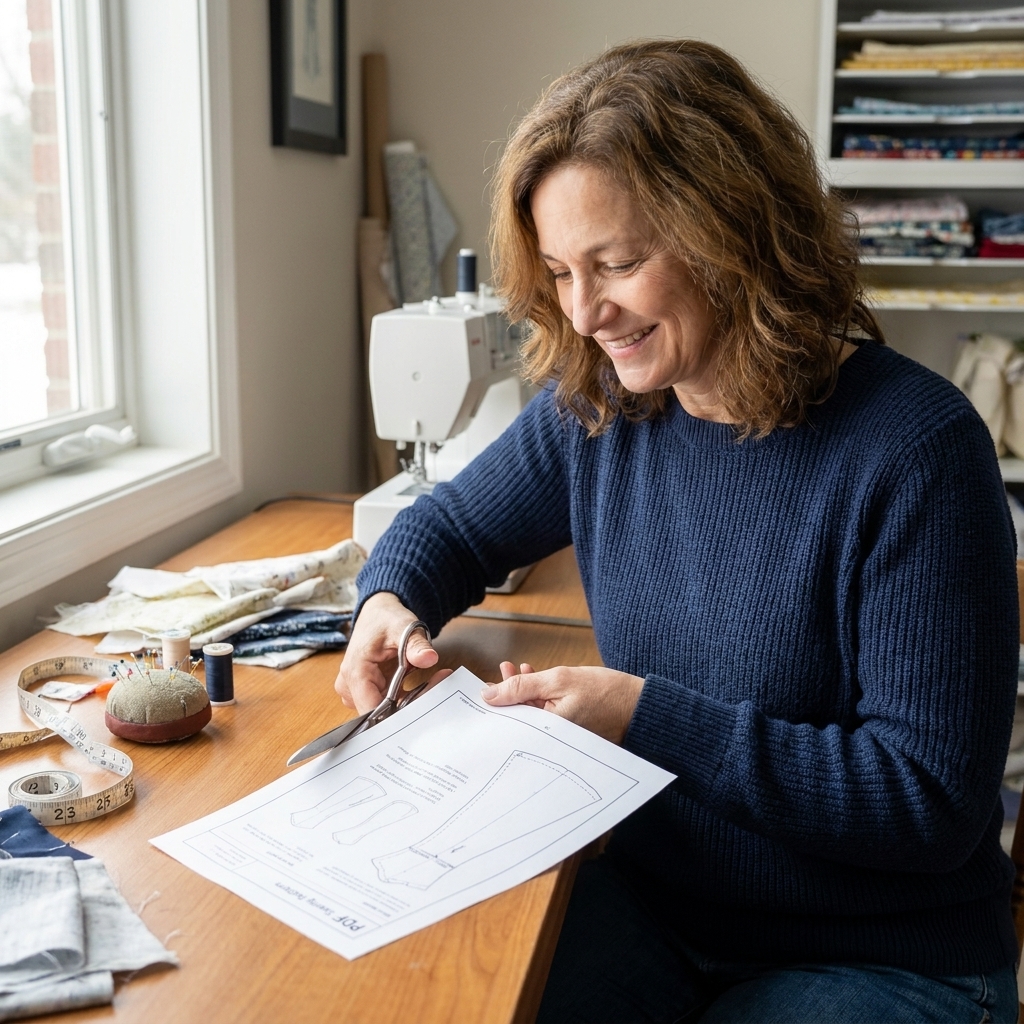
Step 3: Trim consistently
Pick the same edges to trim on every page, based on the instructions. A common approach is trimming the right edge and the bottom edge of each page, leaving the top and left margins intact. But always follow the pattern’s own directions if they specify different sides.
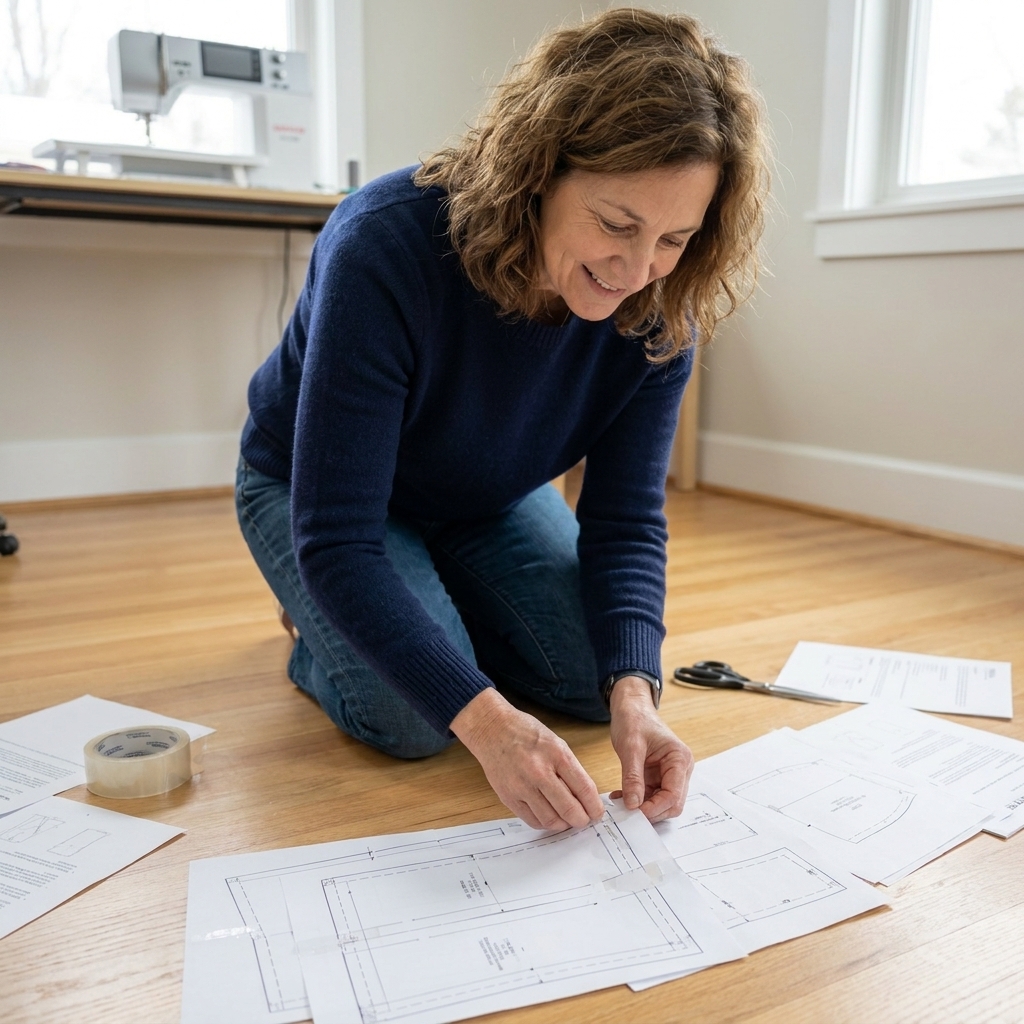
Taping without stress
Step 1: Start with the first row
Begin at the top left page (often A1). Add A2 to the right of it, then A3, and so on. Once the first row is together, move to the next row beneath it.
Step 2: Match the symbols
Patterns usually include alignment aids:
- Small triangles or diamonds at page edges
- Circles that become a full circle when aligned
- Grid lines
- Corner marks
Your job is to match these marks and the printed lines, then tape. If the marks line up but the page edges do not look perfect, trust the marks.
Step 3: Tape the seams, then reinforce
I like to tack pages together with a small piece of tape first, check alignment, then add longer pieces to secure. Think of it like pinning fabric before sewing.
Step 4: Keep it flat
Try to assemble on a hard surface where pages can lie flat. If you are on carpet, the paper can shift a bit while you tape.
After assembly: quick checks before you cut
Confirm your size and cutting lines
If the pattern has layers, make sure the correct size lines are visible. If it does not, take a moment to highlight your size line with a bright pen or pencil. It helps your eyes stay on track.
Check key points that should be symmetrical
Fold the assembled sheet gently along a center line on a piece that is supposed to be cut on fold. The shape should mirror nicely. You are not looking for perfection, just obvious assembly mistakes.
Look for missing pages
Most patterns have page numbers like “3 of 24.” It is worth flipping through your stack before you start taping so you do not discover page 14 is missing after you have taped 13 pages into a paper quilt.
Decide how you want to cut and store
You can cut pattern pieces right out of the assembled sheet, or trace your size onto tracing paper and keep the tiled master intact for later. If you do cut pieces out, store them in a labeled envelope or zip bag so they do not wander off.
Common problems and easy fixes
“My test square is wrong, but I picked 100%.”
- Check for “Fit” hiding in a secondary menu. Some print dialogs apply it by default.
- Try a different PDF viewer. Browser printing is often the culprit.
- Disable “shrink to printable area” if you see it.
- Reprint the test page after every change until it is correct.
“The pattern lines do not meet across pages.”
- Recheck paper size (A4 vs Letter mix-ups are notorious).
- Make sure you did not miss a page in the grid.
- Align using the marks (triangles, circles), not the page edges.
- Watch for page rotation. One page printed sideways can throw off the whole row.
“My printer cuts off the margins.”
Some printers have unprintable edges. Designers usually build in margins for this, but if you are losing important pattern content:
- Confirm you are using the correct file (print-at-home tiles, not A0).
- Check whether your printer has a borderless setting (not common for plain paper printing, but worth a look).
- Try printing from another device or viewer that handles margins better.
“The pages are slightly skewed, like they printed crooked.”
This can happen if paper feeds a bit off. Print a second test page and compare. If it is consistently skewed, try:
- Using a fresher stack of paper
- Cleaning printer rollers (your printer manual can help)
- Switching to a different printer if you have access
Beginner shortcuts that are totally allowed
- Do not tape the entire sheet if you do not need to. You can assemble only the pages that contain the pieces you plan to cut.
- Use a glue stick instead of tape if you prefer. It can be faster and flatter. Let it dry before you cut.
- Trace your size onto tracing paper instead of cutting the master. This keeps the pattern reusable, especially helpful if you might make another size later.
- Pattern weights help once everything is assembled. They keep the paper from shifting while you trace or cut.
FAQ
Should I cut off all the margins?
Not all of them. Usually you trim only specific sides so the remaining margins help you line pages up. Follow the pattern’s instructions, especially if it includes cut marks or a no-trim layout.
Can I print PDF patterns from my phone?
Sometimes, but it is risky. Mobile print apps can sneak in scaling. If you do print from a phone, triple-check that the print scale is exactly 100% and verify with the test square.
Do I have to print in color?
No. Black and white is perfectly fine for most patterns. If the pattern uses color to separate sizes, you might prefer color, but layers usually solve this without needing color.
How do I store taped patterns?
I fold them neatly, then store them in a large envelope or zip bag labeled with the pattern name and size. If you want to be extra kind to Future You, write “Printed at 100%” on the envelope.
One last pep talk
If your first assembly looks a little wavy, you are not bad at PDF patterns. You are learning a new little craft skill, and paper is honestly weirder than fabric sometimes. Go slow, trust the test square, and keep that seam ripper energy in your heart.
We are here to make things, not to be perfect.
Once you have your first PDF pattern assembled, you will be amazed how quickly the next one goes. One stitch at a time, always.